无显示器、键鼠,需要网线。
1 下载 centos7 镜像
进入 http://isoredirect.centos.org/altarch/7/isos/armhfp/,点击第一项,跳转到下载页面,我这里选择 GNOME 版的: 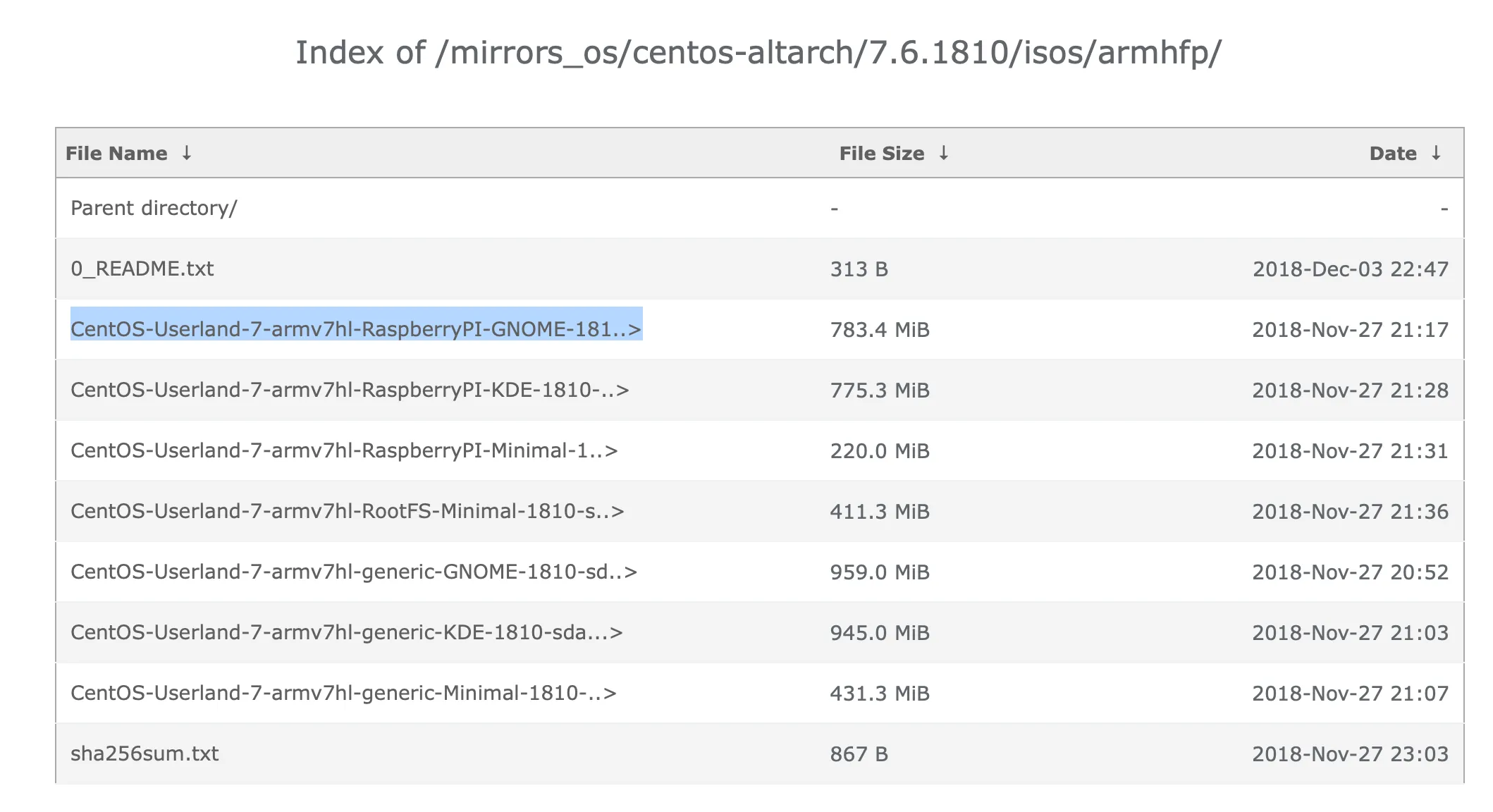 下载之后解压,得到一个镜像文件:
CentOS-Userland-7-armv7hl-RaspberryPI-GNOME-1810-sda.raw
2 烧录镜像到 sd 卡
准备工作:Mac 连接 sd 卡,打开终端。
2.1 卸载 sd 卡挂载的分区
(1)用 df -h 命令查看当前挂载的卷  (2)卸载 sd 卡分区:
diskutil unmount /dev/disk3s1  (3)通过
(3)通过 diskutil list 来确认 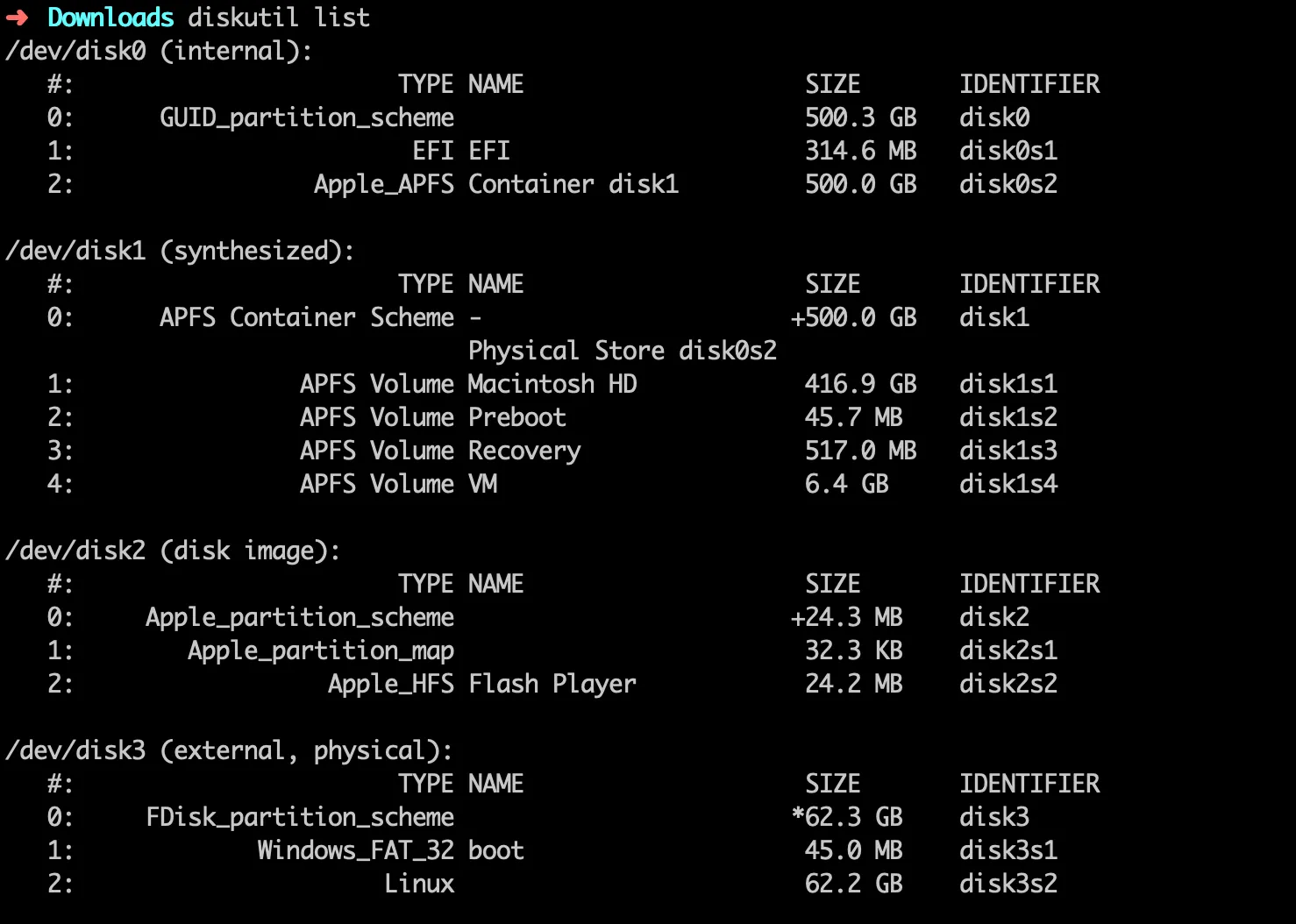
2.2 用 dd 命令写入镜像
sudo dd bs=4m if=CentOS-Userland-7-armv7hl-RaspberryPI-GNOME-1810-sda.raw of=/dev/rdisk3
 烧写完成之后,SD 卡中有一个分区会被自动挂载,卸载它。
diskutil unmountDisk /dev/disk3

3 ssh 连接到树莓派
准备工作:用网线把树莓派连到路由器上,树莓派通电。
3.1 找到树莓派的 ip 地址
用局域网扫描软件,找到树莓派 ip 地址。 可以使用手机 app:Fing。 我发现树莓派的 ip 是 192.168.124.13。
3.2 ssh 连接
密码为 centos。
4 配置 wifi 网络
执行命令:nmtui,进入终端的 wifi 设置页面。 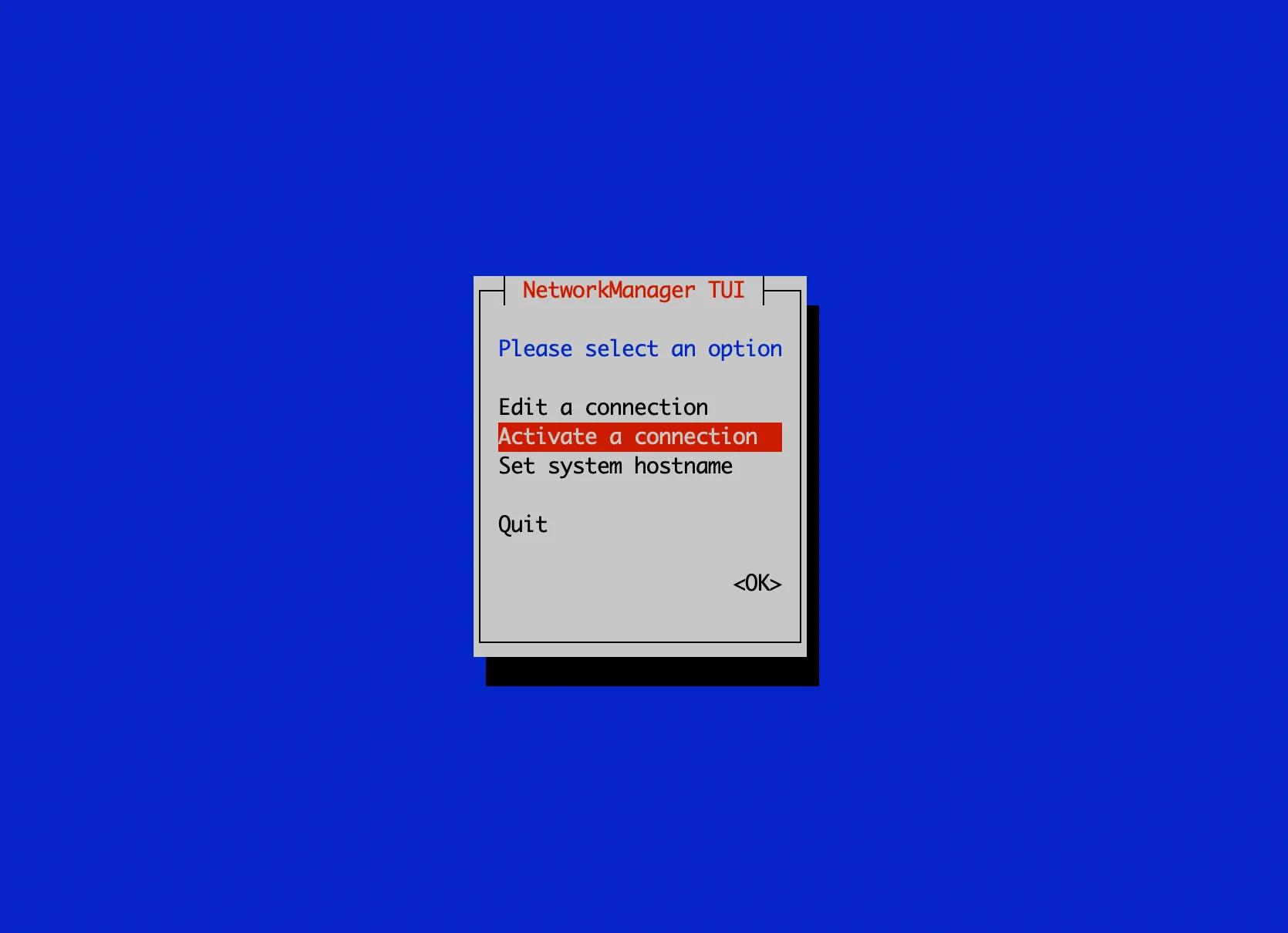 根据提示配置好 wifi。
5 扩展根分区
系统默认镜像把根分区的空间设置为 4G 左右,而我的 sd 卡有 64G,所以需要扩展。 先看下目前的空间: 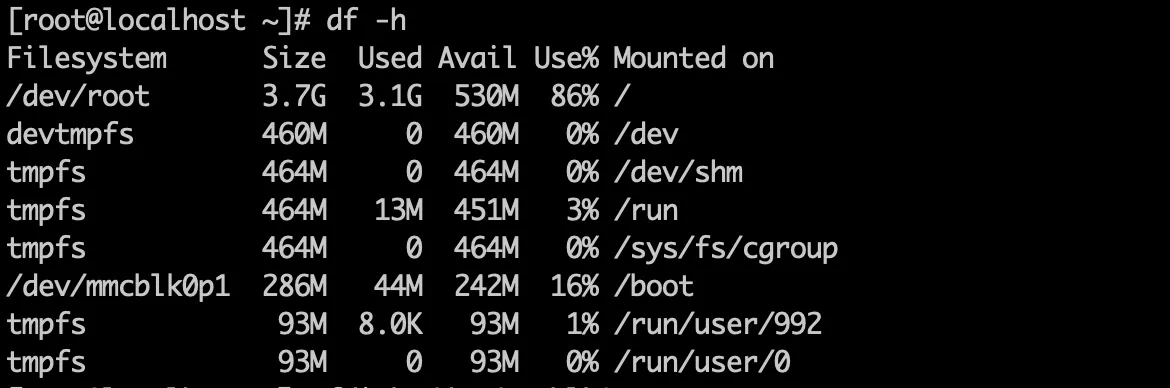 步骤如下:
步骤如下:
- 执行
fdisk /dev/mmcblk0; - 输入
d-> 按 2 下回车 -> 输入n-> 按 5 下回车 -> 输入w-> 按回车; - 执行
reboot重启树莓派; - ssh 连接到树莓派,然后执行
resize2fs /dev/mmcblk0p3。
OK,扩展完毕。此时的空间: 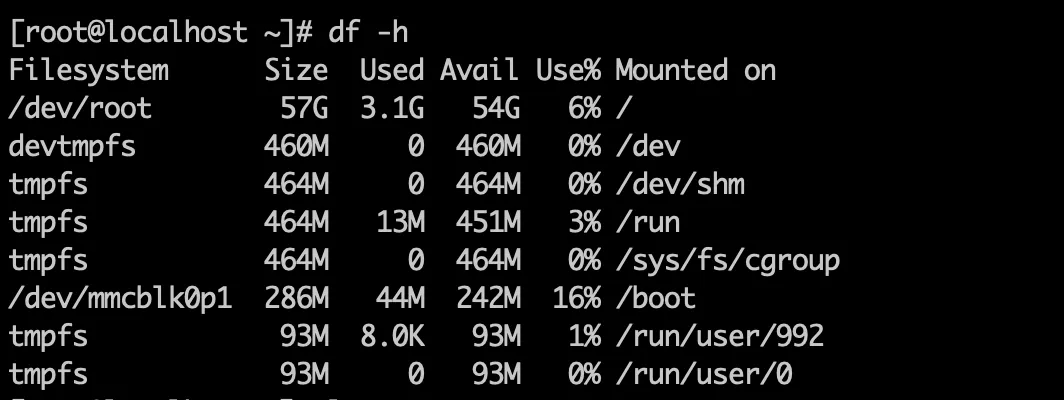
6 配置软件源
树莓派的软件源跟 vps 上的不一样,单独记一下。 使用中科大软件源。 修改 /etc/yum.repos.d/CentOS-Base.repo,内容如下:
# CentOS-Base.repo
The mirror system uses the connecting IP address of the client and the
update status of each mirror to pick mirrors that are updated to and
geographically close to the client. You should use this for CentOS updates
unless you are manually picking other mirrors.
If the mirrorlist= does not work for you, as a fall back you can try the
remarked out baseurl= line instead.
[base] name=CentOS-$releasever - Base #mirrorlist=http://mirrorlist.centos.org/?release=$releasever&arch=$basearch&repo=os baseurl=http://mirrors.ustc.edu.cn/centos-altarch/$releasever/os/$basearch/ gpgcheck=1 enabled=1 gpgkey=file:///etc/pki/rpm-gpg/RPM-GPG-KEY-CentOS-7 file:///etc/pki/rpm-gpg/RPM-GPG-KEY-CentOS-SIG-AltArch-Arm32
#released updates [updates] name=CentOS-$releasever - Updates
mirrorlist=http://mirrorlist.centos.org/?release=$releasever&arch=$basearch&repo=updates
baseurl=http://mirrors.ustc.edu.cn/centos-altarch/$releasever/updates/$basearch/ gpgcheck=1 enabled=1 gpgkey=file:///etc/pki/rpm-gpg/RPM-GPG-KEY-CentOS-7 file:///etc/pki/rpm-gpg/RPM-GPG-KEY-CentOS-SIG-AltArch-Arm32
#additional packages that may be useful [extras] name=CentOS-$releasever - Extras
mirrorlist=http://mirrorlist.centos.org/?release=$releasever&arch=$basearch&repo=extras
baseurl=http://mirrors.ustc.edu.cn/centos-altarch/$releasever/extras/$basearch/ gpgcheck=1 enabled=1 gpgkey=file:///etc/pki/rpm-gpg/RPM-GPG-KEY-CentOS-7 file:///etc/pki/rpm-gpg/RPM-GPG-KEY-CentOS-SIG-AltArch-Arm32
#additional packages that extend functionality of existing packages [centosplus] name=CentOS-$releasever - Plus
mirrorlist=http://mirrorlist.centos.org/?release=$releasever&arch=$basearch&repo=centosplus
baseurl=http://mirrors.ustc.edu.cn/centos-altarch/$releasever/centosplus/$basearch/ gpgcheck=1 enabled=0 gpgkey=file:///etc/pki/rpm-gpg/RPM-GPG-KEY-CentOS-7 file:///etc/pki/rpm-gpg/RPM-GPG-KEY-CentOS-SIG-AltArch-Arm32
执行以下命令,清空并生成缓存。
yum clean all yum makecache
后记
我有显示器,无线鼠标,蓝牙键盘。安装 Raspbian 系统时,不需要用到网线。但是安装 CentOS 时,则遇到了很麻烦的问题(现实中的死锁):
- 不联网没办法设置时区,不能完成初始化;
- 联网需要输入 wifi 密码;
- 要输入 wifi 密码必须连接蓝牙键盘(没有 usb 键盘);
- 要设置蓝牙,必须先完成初始化……
最终还是借助网线解决的。 我之前装了 Raspbian,没有格式化,直接装 CentOS,没遇到问题。 Fing 真的很好用。